Presets
This module provides a set of saved Cellular parameters that can be loaded, saved, or overwritten.
References
Previous and next preset selection buttons:

Preset menu activation button:

Preset menu:
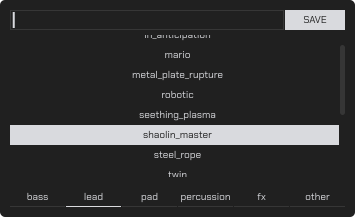
Preset name input field and save button:

The "SAVE" button saves the preset in the selected category if the name is not empty and does not match the name of built-in presets. If a custom preset name is entered and "SAVE" is pressed, the preset will be overwritten.
Category selection buttons:

In this mode, touching an element or pressing a segment button selects the corresponding one.
Selected category presets list:
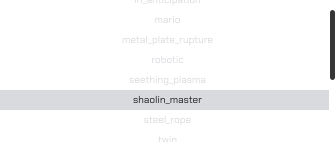
A light line highlights the last loaded preset. Clicking on the preset name loads it.
Guides
How to switch to the previous or next preset?
- Press the button to select the previous or next preset.
- Ensure that Cellular's settings have changed.
How to select a specific preset?
- Press the preset menu activation button to open the menu.
- Choose a category using the corresponding button.
- Scroll down to view the full list of presets.
- Select the name of the preset you want to load from the list.
- Press the preset menu activation button again to close the menu.
- Ensure that Cellular's settings have changed.
How to save your settings?
- Press the preset menu activation button to open the menu.
- Choose a category using the corresponding button.
- At the top of the menu, enter the desired name for your preset in the corresponding field.
- Ensure that the name does not match the name of a built-in preset.
- Press the "SAVE" button.
- Press the preset menu activation button again to reopen the menu.
- Ensure that your preset name appears in the list of the selected category.